Overview
With OneDrive, you can sync files between your computer and the cloud(Microsoft server), so you can get to your files from anywhere – your computer, your mobile device, and even through the OneDrive website at onedrive.live.com. If you add, change, or delete a file or folder in your OneDrive folder, the file or folder is added, changed, or deleted on the OneDrive website and vice versa. You can work with your synced files directly in File Explorer and access your files even when you’re offline. Whenever you’re online, any changes that you or others make will sync automatically.
Benefits of having files in the cloud
- You can back up your files – for example if you lose your computer, your files won’t be lost, you will be able to retrieve them from the cloud
- Anywhere access – you don’t need to carry your PC around the world, you can access files from any other computer or mobile device by accessing them from the cloud
- Share & Collaborate – no need to send file back and forth via email, in the cloud you can send a share link, and you and whoever you share the link with, can work on the file simultaneously
Log into OneDrive
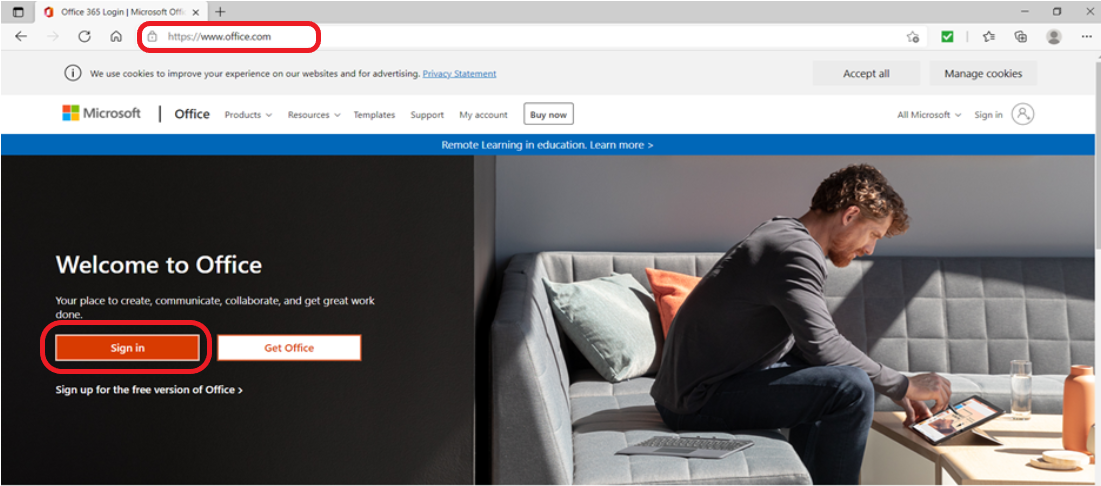
- Open your internet browser and type in the URL type office.com
- Click on Sign in
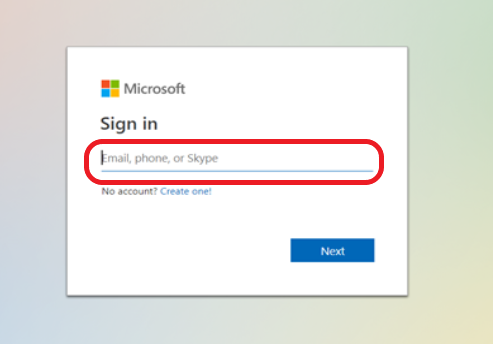
- Type in your email address into the Sign in window
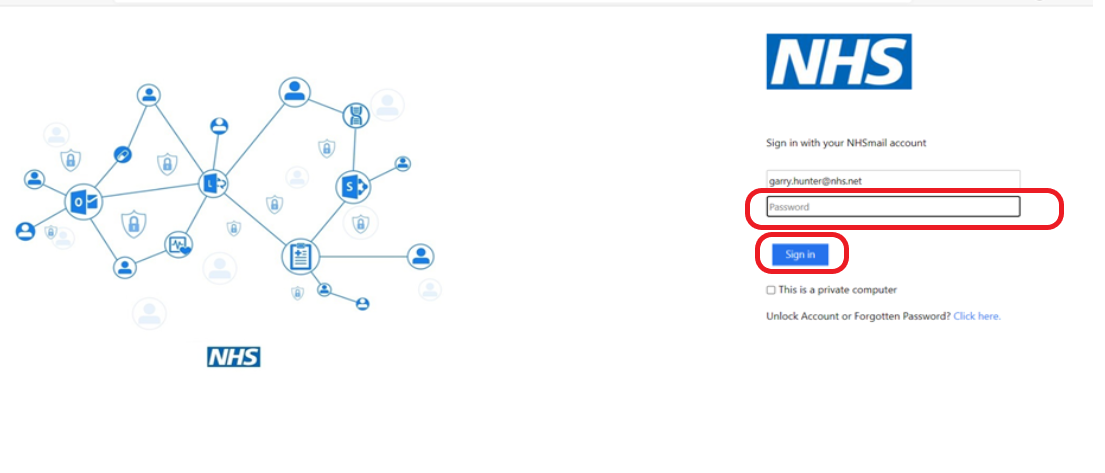
- You’ll be taken to your organisation log in page, type in your password
- Click Sign in
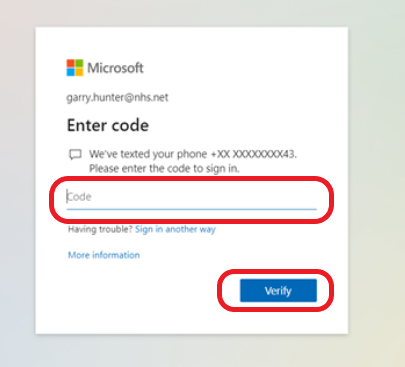
- You’ll receive a two step authentication code sent to your mobile phone, enter the code in the Microsoft pop up window
- Click Verify
The Office 365 homepage opens
- Click on the OneDrive icon
 on the left hand side of the screen
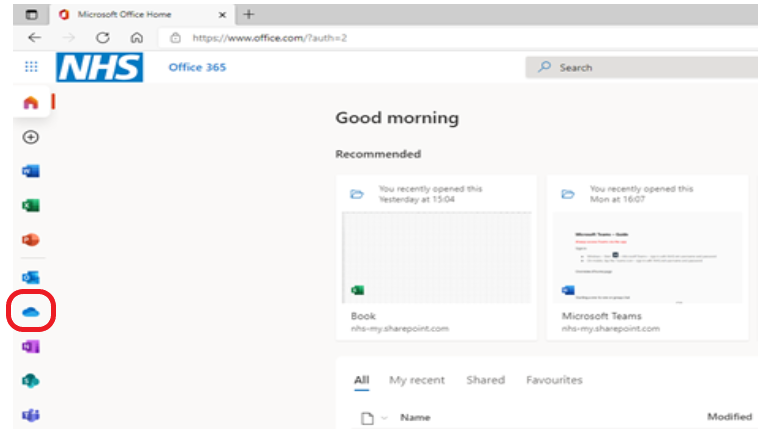
This opens up OneDrive on the web and shows everything stored in the cloud
- A search box is available to search for a file

My Files is showing by default on the left hand side of the screen, within here you can:
- Create a new folder or 365 application app document by clicking on New
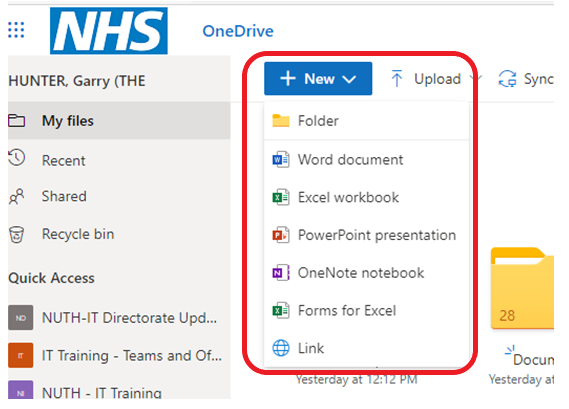
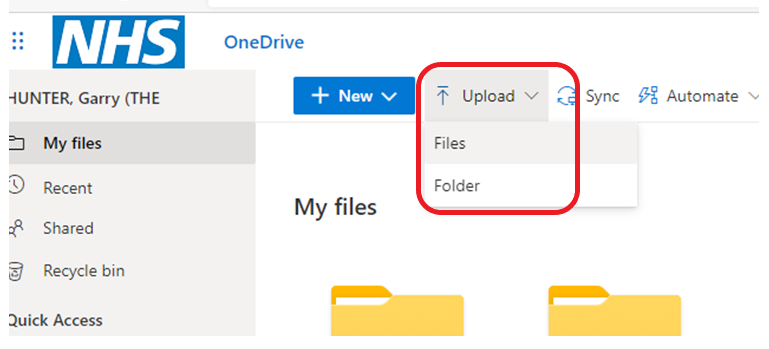
- Upload a file or folder by clicking Upload then either Files or Folder
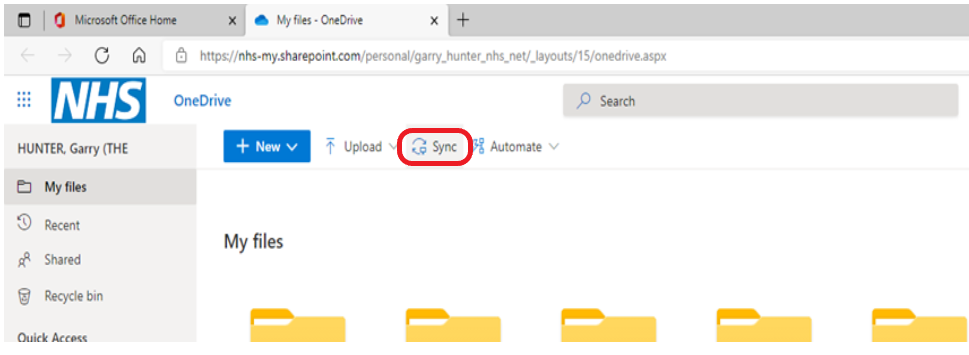
- Synchronise your OneDrive by clicking on Sync
Additional functionality in the My Files view

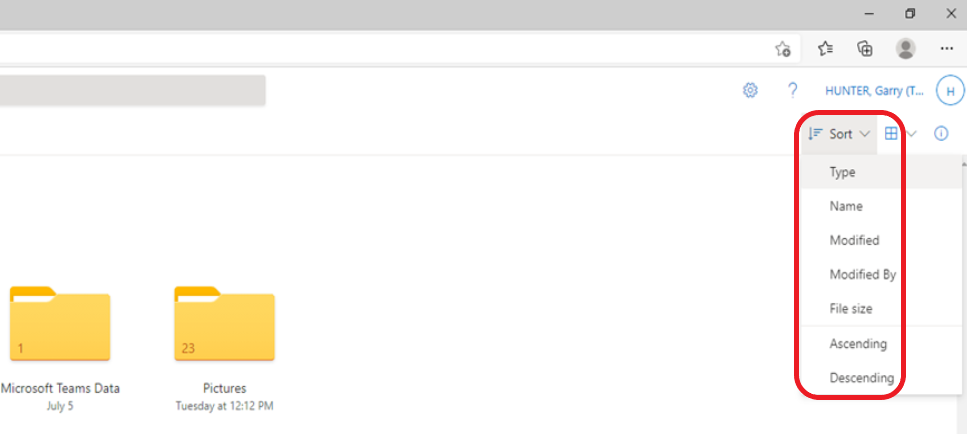
- Sort – allows you to select how you want to sort your folders and files
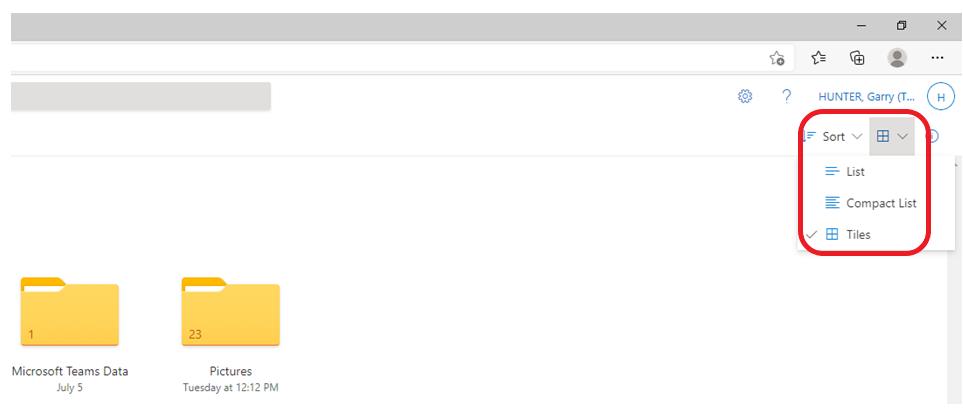
- View options – allows you to set a specific view option
- Information – allows you to view all of the activity that has occurred
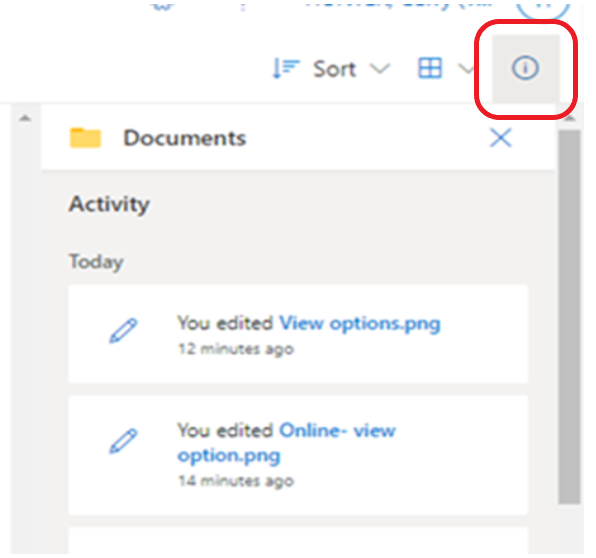
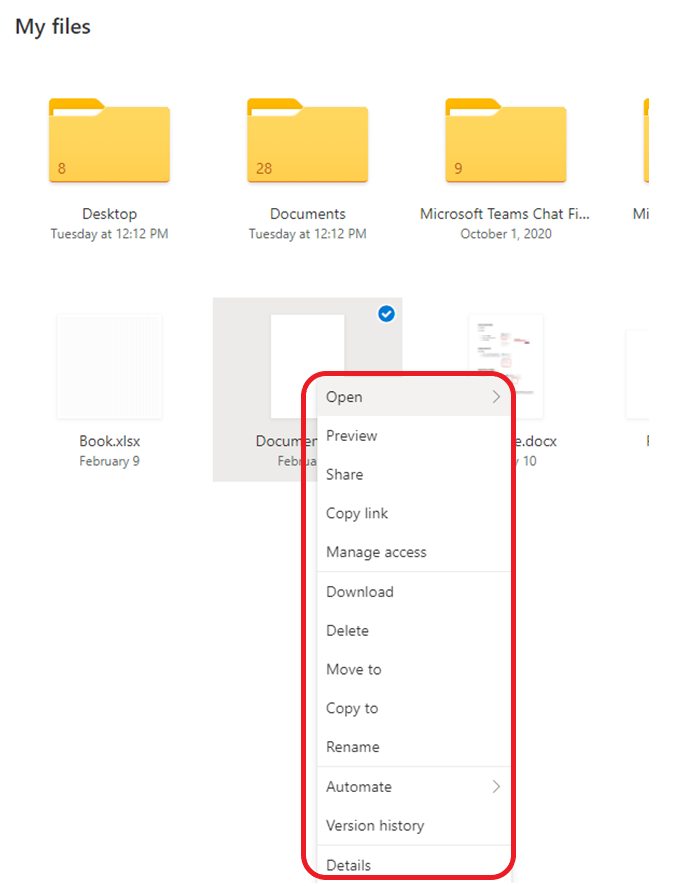
- Actions available on files – if you right click on a file, a context menu appears with options
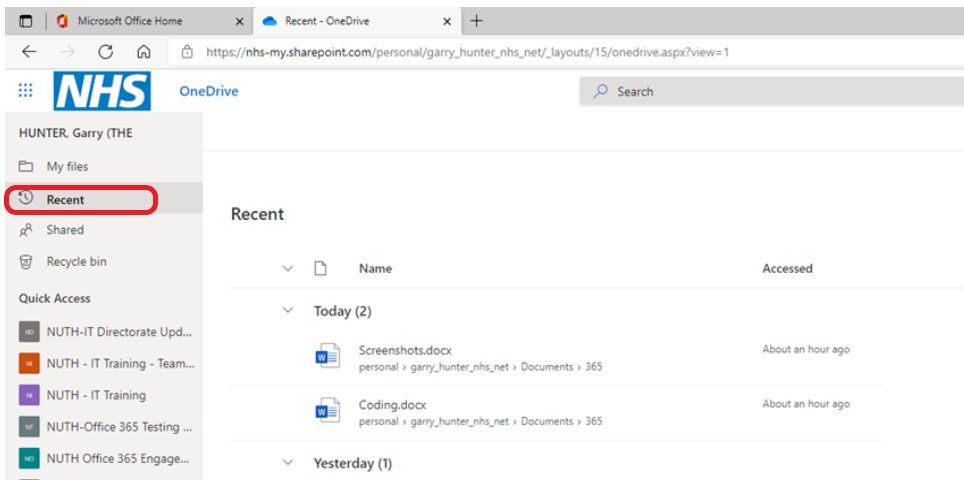
- Recent – this shows all of the most recent documents you have worked on
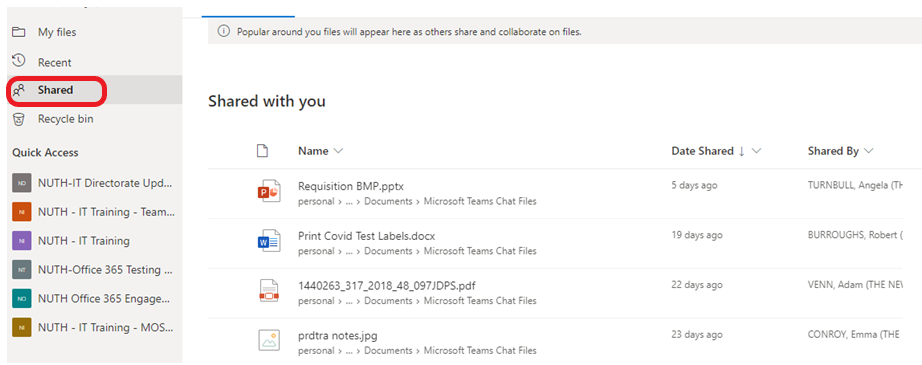
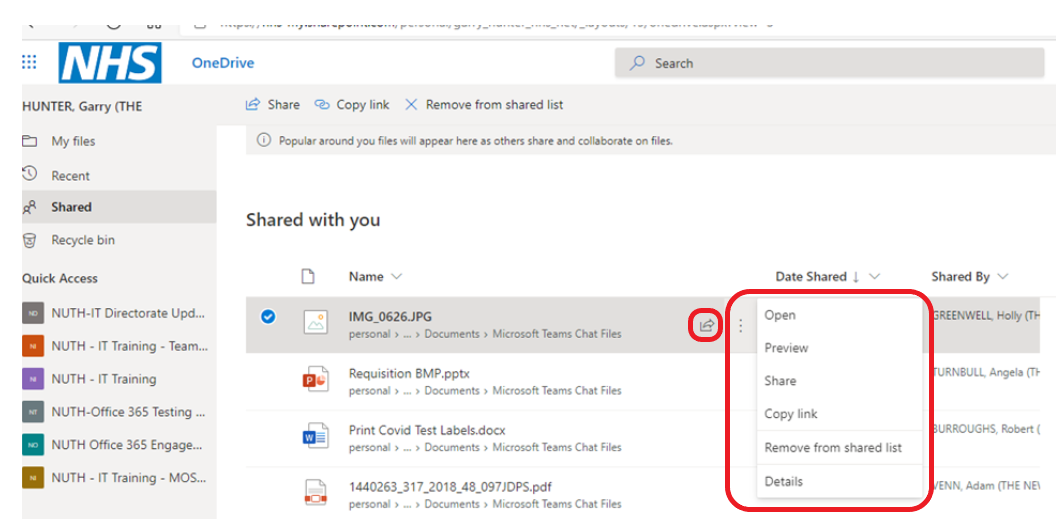
Shared – this shows you all files that have been shared
- Selecting a file and clicking the ellipse provides you with further actions for the file
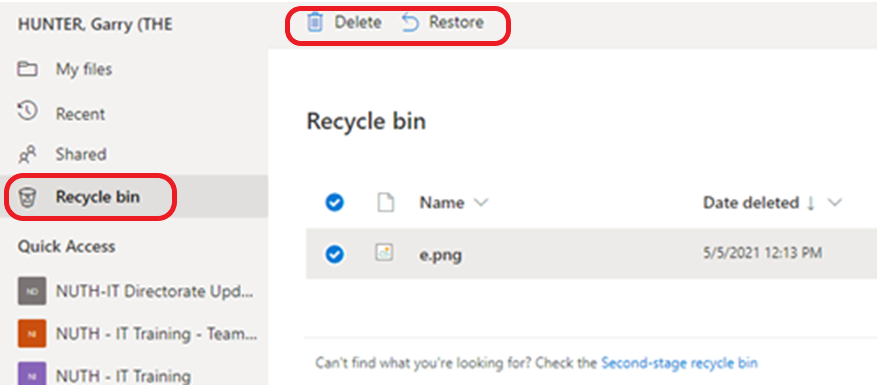
Recycle bin – here you can see items you have deleted and maybe want to retrieve, they stay in the Recycle bin for a certain amount of time until they’re deleted permanently
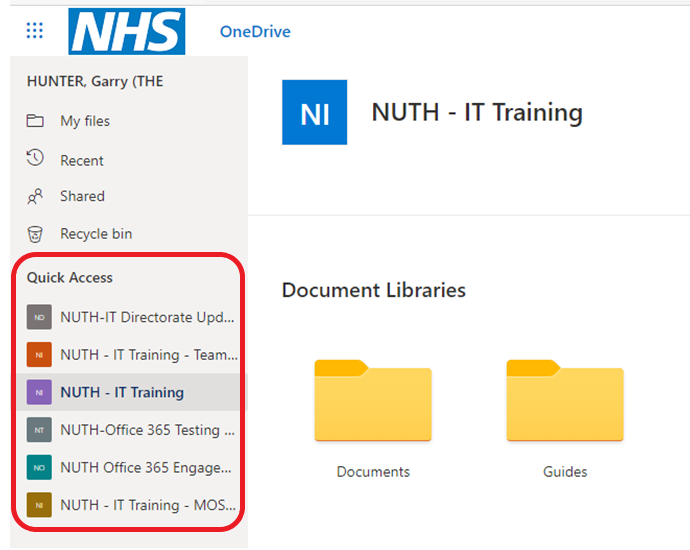
- Quick Access – gives you access to documents in the various Teams channels you are part of
Teamwork lives here – A shared library is like a separate OneDrive for your team or group project
To share a file
- In My files, right click on the file you want to share and select Share
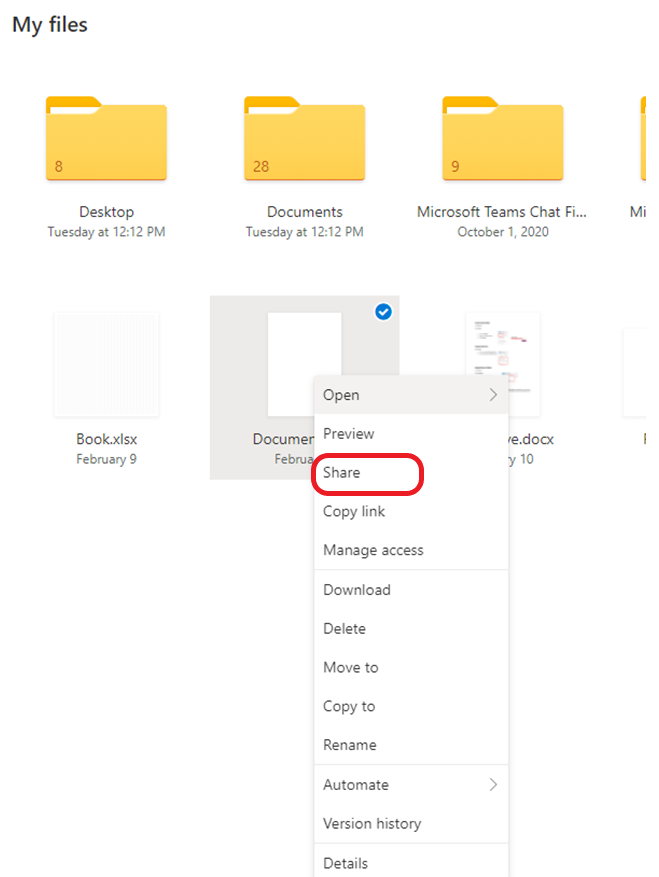
- The Share ‘Documents’ window opens
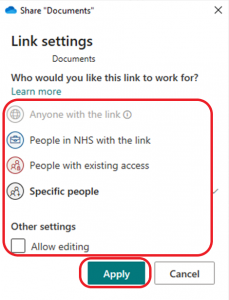
- Click on People you specify can view, select the appropriate people and whether to allow editing, then click Apply
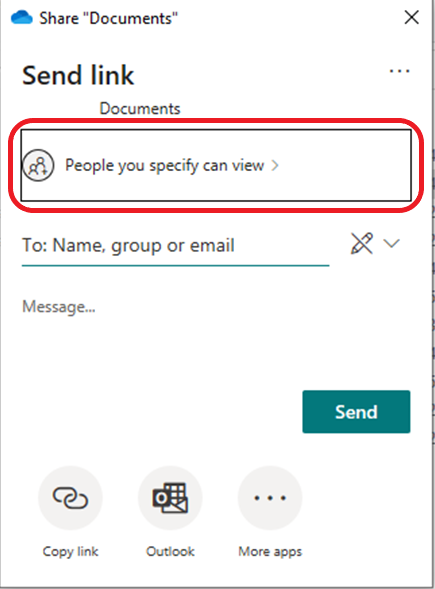
- Type in a name or email address and click Send to share the file

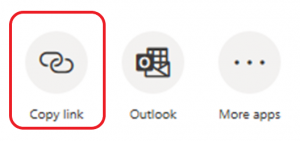
Or copy the link to share in alternative ways such as social media or What’sApp
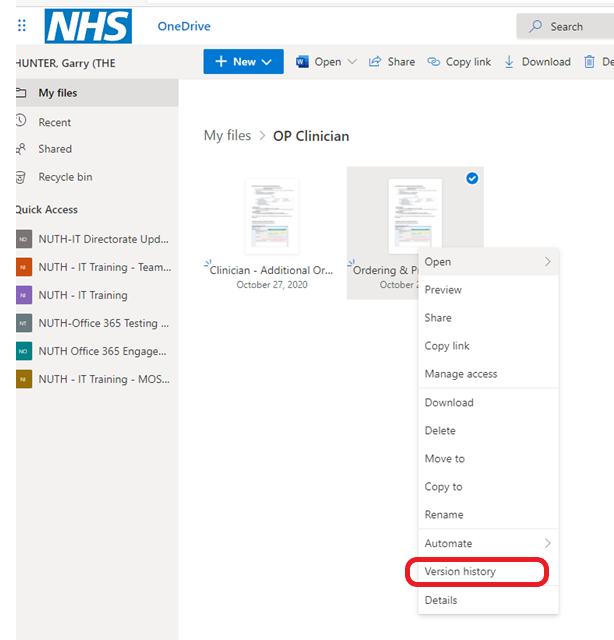
To access Version History
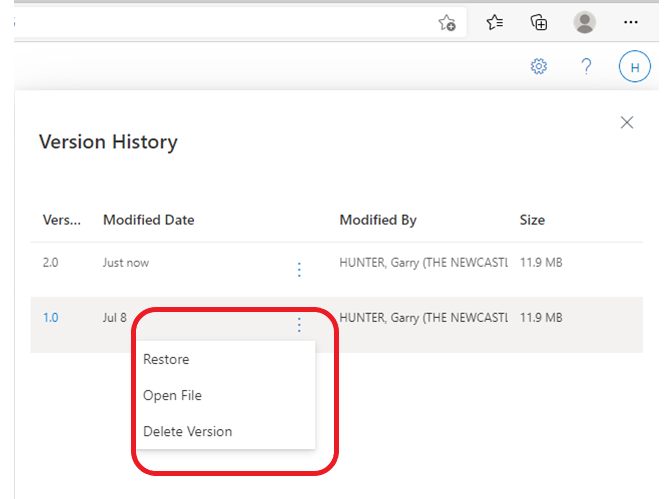
- In My files, right click on the file you want to share and see the file Version History
- If you click on the ellipse you can open the file
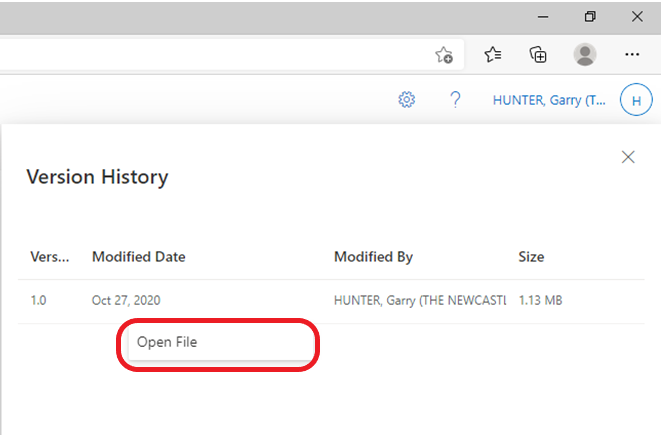
- If there are more than one version, you can Restore or Delete that specific Version